 Flutter · Dart
→
Recognized locally
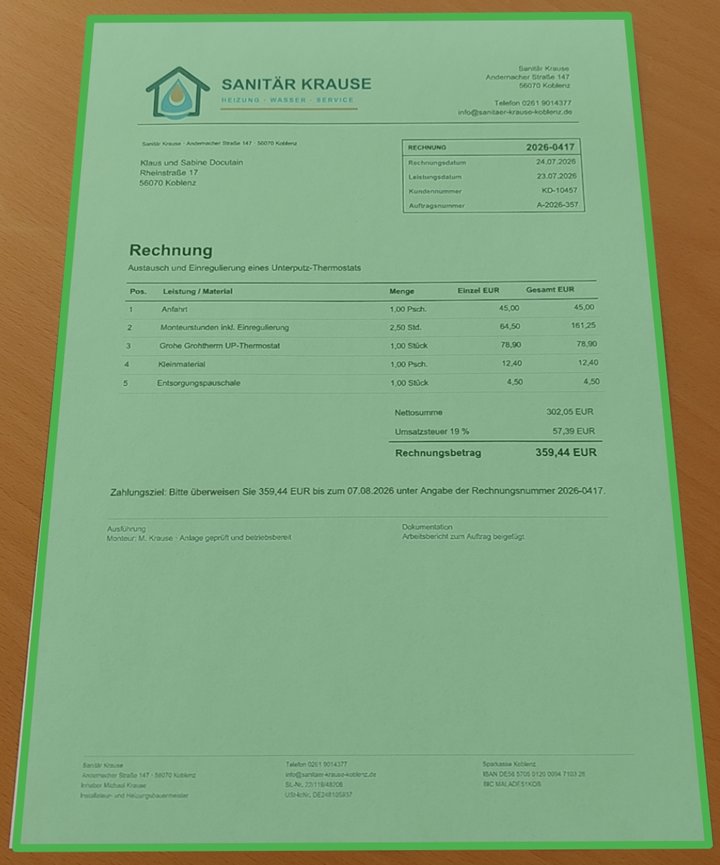
Payment data
RecipientSanitär Krause
AmountEUR 359.44
IBANDE58 5705 0120 0094 7103 28
PurposeInvoice 2026-0417
IBAN validated by Docutain
Updated 9 min readBy Lena Hoffmann
Integrate Photo Payment with Flutter
This guide implements a complete asynchronous Dart flow for native Photo Payment on Android and iOS.
The Flutter plugin opens Docutain's native capture UI, recognizes GiroCode or invoice data locally and returns structured JSON. The app maps that result into its own reviewed and authorized payment process.
- Targets
- Android and iOS
- Plugin
- docutain_sdk
- Result
- Nullable JSON string
- Processing
- Local in the native SDK
Jump to the Flutter setup
The Flutter-to-native payment workflow
- A Flutter button invokes the Docutain plugin.
- The plugin presents the native Android or iOS capture and review experience.
- Docutain reads a GiroCode when available or extracts payment fields from invoice text.
- The awaited Future returns JSON, an empty string or
null. - Dart maps the data to an application model before the host app shows and authorizes the payment.
Prepare the Android and iOS targets
| Area | Requirement |
|---|
| Flutter | Current Flutter SDK and the docutain_sdk plugin |
| Android | Android 5.0+, compileSdk 34+ and Android Gradle Plugin 8.0.2+ |
| iOS | iOS 11+ and an NSCameraUsageDescription |
| License | A key matching Android applicationId and iOS bundle identifier |
| Evaluation | Representative physical Android and iOS devices |
For Android, follow the documented memory configuration for high-resolution images. On iOS, the app can run in the Simulator, but Docutain processing must be evaluated on a physical device.
Install and initialize the Flutter plugin
1. Add the dependency
dependencies:
  docutain_sdk: ^2.1.0
flutter pub get
2. Initialize before displaying the payment action
Future<bool> initializeDocutain() async {
  final initialized = await DocutainSdk.initSDK(
    '<YOUR-LICENSE-KEY>',
  );

  if (!initialized) {
    // Read the SDK error and keep Photo Payment disabled.
    final error = await DocutainSdk.getLastError();
    reportInitializationError(error);
  }

  return initialized;
}
Launch Photo Payment and handle all three outcomes
Future<void> startPhotoPayment() async {
  final config = PhotoPaymentConfiguration();
  final paymentData =
      await DocutainSdkUi.startPhotoPayment(config);

  if (paymentData == null) {
    return; // The user canceled the flow.
  }

  if (paymentData.isEmpty) {
    // No data was found. This is reachable when the
    // Empty Result Screen has been disabled.
    showManualEntry();
    return;
  }

  // Decode the JSON, apply app rules and prefill a draft.
  processPaymentData(paymentData);
}
Guard the UI action while the Future is pending. A second tap should not start another native flow before the first one returns.
Decode the JSON into a typed Dart model
{
  "Address": {
    "Name1": "Sanitär Krause",
    "Zipcode": "56068",
    "City": "Koblenz",
    "Street": "Musterstraße 17",
    "Bank": [{
      "BIC": "MALADE51KOB",
      "IBAN": "DE58570501200094710328"
    }]
  },
  "Date": "2026-04-17",
  "Amount": "359.44",
  "InvoiceId": "2026-0417",
  "Reference": "Invoice 2026-0417",
  "PaymentState": "ToBePaid",
  "SEPACreditor": "Sanitär Krause"
}
SEPACreditor is the payment recipient. Make fields nullable in the Dart model and reject malformed JSON without losing the user's current payment draft. Although Docutain only returns valid IBANs, the app must verify the intended recipient, amount and reference before authorization.
Configure analysis and the no-result path
PhotoPaymentConfiguration also controls capture behavior, page editing, onboarding, Scan Tips, colors and the Empty Result Screen. Use analyzeConfig only for fields your payment model actually needs.
final config = PhotoPaymentConfiguration();

// Add the optional paid/to-be-paid classification.
config.analyzeConfig.readPaymentState = true;

final paymentData =
    await DocutainSdkUi.startPhotoPayment(config);
Disabling BIC changes the returned bank-data shape to an IBAN list, so update the mapper at the same time. Keep the default Empty Result Screen during evaluation: it offers retry and cancel when no IBAN, recipient or amount could be read.
GiroCode and text recognition share the same Photo Payment entry point. This removes the need for a separate barcode choice in the Flutter UI.
Test Flutter state and native camera behavior
- Start with the Android and iOS Showcase Apps, then use a trial license in the Flutter app.
- Test the same approved invoice corpus on representative physical devices.
- Include paper, folded and screen-displayed invoices, files and GiroCodes.
- Measure field-level correctness and manual corrections—not only whether JSON was returned.
- Test
null, empty result, initialization failure and malformed JSON explicitly. - Verify widget disposal, app backgrounding and double-tap prevention while the native UI is open.
- Run TalkBack and VoiceOver tests for both the native capture flow and Flutter payment form.
Official resources
Technical sources last checked on September 13, 2026.
FREQUENTLY ASKED QUESTIONS
Flutter Photo Payment integration
Yes. Supported payment data is recognized on the Android or iOS device without an external recognition server. The host app controls any subsequent storage or transfer.
Await DocutainSdkUi.startPhotoPayment; a non-empty string contains the payment JSON.
A null result means cancellation, while an empty string means that no data was extracted when the Empty Result Screen is disabled.
No. It returns structured payment data. The banking app remains responsible for review, business rules, authorization and execution.