 Cordova · JavaScript
→
Recognized locally
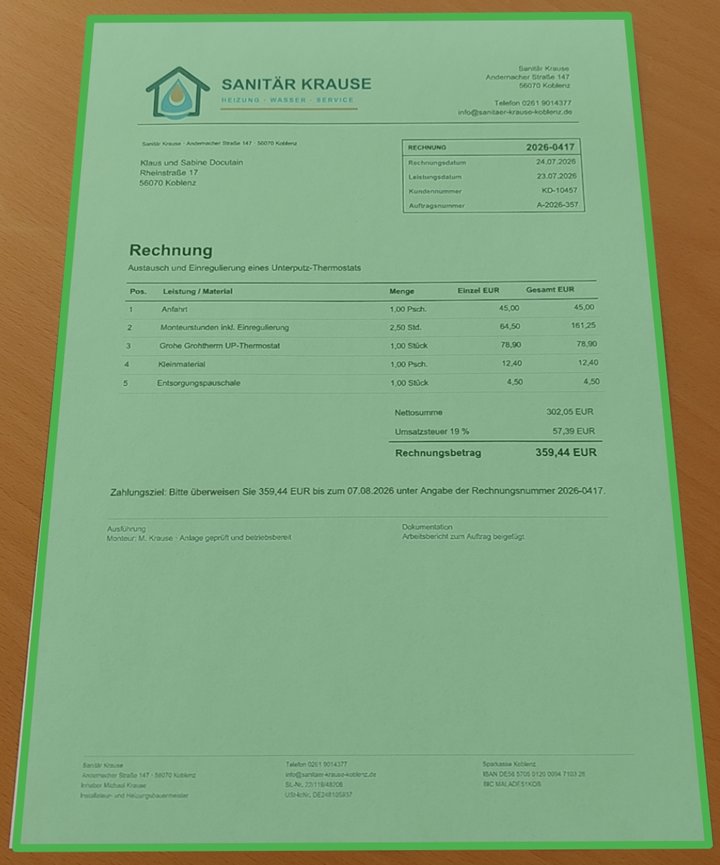
Payment data
RecipientSanitär Krause
AmountEUR 359.44
IBANDE58 5705 0120 0094 7103 28
PurposeInvoice 2026-0417
IBAN validated by Docutain
Updated 9 min readBy Sarah Karbach
Integrate Photo Payment with Cordova
This guide implements a complete native Photo Payment flow in Cordova with the Promise-based API.
The plugin opens native Android or iOS capture, recognizes GiroCode or invoice data locally and returns structured JSON. The host app remains responsible for mapping, confirmation, authentication and payment execution.
- Targets
- Android and iOS
- Language
- JavaScript
- API
- Promise; callback also available
- Processing
- Local in the native SDK
Jump to the Cordova setup
The Cordova-to-native payment workflow
- The Cordova UI invokes Photo Payment after
deviceready. - The plugin presents native Android or iOS capture and review UI.
- Docutain reads a GiroCode when available or extracts payment fields from invoice text.
- The Promise resolves with JSON or rejects with cancellation/error.
- JavaScript maps the values into a draft before the app's established authorization flow starts.
Prepare both native targets
| Area | Requirement |
|---|
| Package | @docutain/cordova-plugin-docutain-sdk |
| Android | minSdk 21+, compileSdk 34+ and Kotlin support enabled |
| iOS | An NSCameraUsageDescription for invoice scanning |
| License | A key matching the Cordova widget ID |
| Evaluation | Installed builds on representative physical devices |
Apply the documented Android memory settings for high-resolution images. A browser run can test the surrounding web UI but not the native Docutain processing path.
Install and initialize the Cordova plugin
1. Add the plugin
cordova plugin add @docutain/cordova-plugin-docutain-sdk
2. Initialize after deviceready
document.addEventListener('deviceready', initializeDocutain);

async function initializeDocutain() {
  try {
    await DocutainSDKPromisify.initSDK(
      '<YOUR-LICENSE-KEY>'
    );
    enablePhotoPayment();
  } catch (error) {
    // Keep Photo Payment disabled and expose a support path.
    reportInitializationError(error);
  }
}
Do not call the plugin before Cordova signals deviceready. Initialization failure must leave the Photo Payment action disabled.
Launch Photo Payment with the Promise API
async function startPhotoPayment() {
  try {
    const paymentData =
      await DocutainSDKPromisify.startPhotoPayment({
        // Customize scan, analysis and theming when required.
      });

    if (paymentData === '') {
      // No data was found. This is reachable when the
      // Empty Result Screen has been disabled.
      showManualEntry();
      return;
    }

    processPaymentData(paymentData);
  } catch (error) {
    if (error === 'CANCELED') {
      return; // Expected user cancellation.
    }
    reportPhotoPaymentError(error);
  }
}
The callback API exposes the same result states. Do not mix Promise and callback calls in the same integration service; one consistent style reduces duplicate error and lifecycle handling.
Map the JSON into a payment draft
{
  "Address": {
    "Name1": "Sanitär Krause",
    "Zipcode": "56068",
    "City": "Koblenz",
    "Street": "Musterstraße 17",
    "Bank": [{
      "BIC": "MALADE51KOB",
      "IBAN": "DE58570501200094710328"
    }]
  },
  "Date": "2026-04-17",
  "Amount": "359.44",
  "InvoiceId": "2026-0417",
  "Reference": "Invoice 2026-0417",
  "PaymentState": "ToBePaid",
  "SEPACreditor": "Sanitär Krause"
}
SEPACreditor is the payment recipient. Keep document fields optional and handle malformed JSON without discarding the user's current form. The SDK returns only valid IBANs; the host app must still confirm recipient, IBAN, amount and reference before authorization.
Configure analysis, UX and the no-result path
The options object also controls capture behavior, page editing, onboarding, Scan Tips, colors and the Empty Result Screen. Add only the analysis fields required by the payment model.
const paymentData =
  await DocutainSDKPromisify.startPhotoPayment({
    analyzeConfig: {
      // Add the optional paid/to-be-paid classification.
      readPaymentState: true,
    },
    // Keep the default retry screen during evaluation.
  });
Disabling BIC changes the returned bank-data shape to an IBAN list, so update the mapper in the same release. GiroCode and invoice OCR remain one Photo Payment entry point.
Test native behavior and Cordova lifecycle
- Start with the Android and iOS Showcase Apps, then use a trial license in the installed Cordova app.
- Test the same approved invoice corpus on representative physical devices.
- Include paper invoices, files and GiroCodes in realistic lighting.
- Measure field-level correctness and manual corrections for recipient, IBAN, amount and reference.
- Verify empty data,
CANCELED, initialization failure, bridge errors and retry/manual entry. - Test
deviceready, app backgrounding, repeated view creation and double-tap prevention. - Check accessibility in both the web-based payment screen and native capture UI.
Official resources
Technical sources last checked on September 13, 2026.
FREQUENTLY ASKED QUESTIONS
Cordova Photo Payment integration
Yes. Supported payment data is recognized on the Android or iOS device without an external recognition server. The host app controls any subsequent storage or transfer.
The Promisify API returns the payment JSON string from DocutainSDKPromisify.startPhotoPayment.
A rejected promise with value CANCELED means the user canceled the flow; handle other values as errors.
No. It returns structured payment data. The banking app remains responsible for review, business rules, authorization and execution.