Updated 10 min readBy Docutain SDK Team
Build a document scanner with Kotlin Multiplatform
Use the Docutain SDK's common Kotlin API to start a document scan in an Android and iOS app and work with the result from shared code.
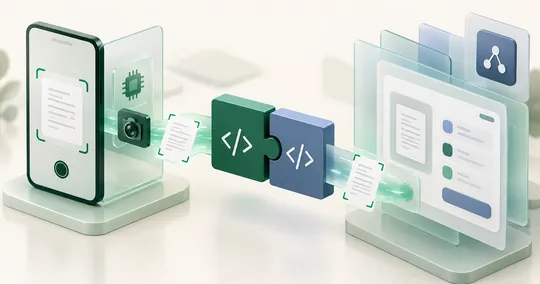
Kotlin Multiplatform lets an app share selected Kotlin code across Android and iOS. The UI can stay platform-specific or use Compose Multiplatform. The Docutain KMP package exposes its API in commonMain and uses the native Docutain implementations on both mobile platforms. This guide focuses on document scanning; a native Android app written in Kotlin uses the separate Android integration.
- Targets
- Android and iOS
- Shared API
- Kotlin
commonMain - Minimum OS
- Android API 24; iOS 13
- Processing
- Local and offline
Project structure and platform requirements
Plan three layers: commonMain owns SDK calls, result states and shared application logic. The Android and iOS apps provide platform integration, resources and file sharing. The native Docutain UI handles capture and editing; your application then presents the result. A shared API therefore still needs target-specific setup.
The current Android setup requires JDK 17, compileSdk 37 and a compatible Android Gradle Plugin, such as 9.1.1 or newer. iOS builds need a macOS environment with Xcode and CocoaPods. Check compatibility with your existing project in the KMP setup guide. Add a meaningful NSCameraUsageDescription on iOS and verify camera access on both devices before evaluating the complete flow.
Add the dependencies
Add the KMP package to the shared module's commonMain dependencies:
kotlin {
    sourceSets {
        commonMain.dependencies {
            implementation("de.docutain:Docutain-SDK-KMP:1.0.0")
        }
    }
}
The iOS app also needs the native Docutain CocoaPod:
platform :ios, '13.0'
target 'YourApp' do
  use_frameworks!
  pod 'DocutainSdk', '1.9.0'
end
Run pod install after updating the Podfile. The current KMP setup guide lists build requirements and dependency versions; check it before upgrading your project.
Initialize the SDK
Initialize Docutain during application startup, before starting a scan. Use a license key valid for each target app's identifier. The trial form accepts one identifier; contact SDK support to arrange evaluation for a second app identifier.
import de.docutain.sdk.kmp.DocutainException
import de.docutain.sdk.kmp.DocutainSdk

try {
    DocutainSdk.initSdk("<YOUR-LICENSE-KEY>")
} catch (exception: DocutainException) {
    // Disable SDK actions and show an appropriate error.
}
You can request a free trial license for evaluation. The initialization guide covers license behavior and error handling.
Scan and process the result
The ready-to-use scan UI can be started from shared Kotlin code. scanDocument is a suspend function: launch it in a coroutine and continue only when the user completes the scan.
import androidx.compose.runtime.rememberCoroutineScope
import de.docutain.sdk.kmp.DocutainException
import de.docutain.sdk.kmp.DocutainSdk
import de.docutain.sdk.kmp.DocumentScannerConfiguration
import kotlinx.coroutines.launch

val scope = rememberCoroutineScope()
scope.launch {
    try {
        val completed = DocutainSdk.scanDocument(DocumentScannerConfiguration())
        if (completed) {
            val pdfUrl = DocutainSdk.writePDF()
            for (page in 1..DocutainSdk.pageCount()) {
                val imageUrl = DocutainSdk.writeImage(page)
                // Use the exported page image in your workflow.
            }
            val text = DocutainSdk.getText()
            val data = DocutainSdk.analyze()
            // Use the PDF, OCR text and extracted data in your app.
        }
    } catch (exception: DocutainException) {
        // Handle the scan or export error.
    }
}
This example runs from a Compose screen, where rememberCoroutineScope() is available. In a KMP app with native UI, call the same suspend API from an appropriate coroutine scope in your shared application layer. The generated PDF is returned as a file:// URL on Android and iOS. OCR text and structured extraction depend on the licensed modules; your app decides how to store or share results.
DocumentScannerConfiguration also supports camera and gallery input, multi-page scans and scan UI options. For the supported settings and current API details, see Document Scan and PDF Creation.
For multi-page contracts or receipts, automatic capture, page confirmation and retaking an unclear page help users finish the document. This configuration adds an import button to the camera flow. Use it in place of the default configuration in the scan call; result handling stays the same.
import de.docutain.sdk.kmp.DocumentScannerConfiguration
import de.docutain.sdk.kmp.Source

val scanConfig = DocumentScannerConfiguration().apply {
    source = Source.CAMERA_IMPORT
    autoCapture = true
    multiPage = true
    confirmPages = true
    pageEditConfig.allowPageRetake = true
}
// Inside your coroutine, use this instead of the default configuration:
val completed = DocutainSdk.scanDocument(scanConfig)
Set multiPage = false for a single page, or use Source.GALLERY_MULTIPLE for several existing images. Choose filters against representative text, logos and colour diagrams before fixing one for every document. See Document Scan.
Colours, text and button titles can be configured from shared code; custom button icons need platform resources. Use Color Configuration, Onboarding and Scan Tips to help users get started. For international apps, test the SDK UI and your own copy in each target language separately from OCR recognition.
Export PDFs and page images
Decide which output your workflow needs: one PDF for filing, individual page images for another process, or additional OCR text. Run only those export steps. A scan-to-PDF flow does not need calls to getText() or analyze().
import de.docutain.sdk.kmp.DocutainSdk
import de.docutain.sdk.kmp.PDFPageFormat

// Call after a completed scan, inside a coroutine.
val pdfUrl = DocutainSdk.writePDF(
    pageFormat = PDFPageFormat.LETTER,
    maxSizeKB = 10 * 1024
)
This example uses US Letter; select A4 for other markets or FIT_TO_PAGES to preserve page aspect ratios. A size limit can affect image quality and export time, so test small print and long documents. PDF Creation covers formats, compression and custom destination files.
The returned file:// URL identifies a local file. Hand it to your platform storage or sharing layer; it is not a public download link. Complete persistence or upload before your app cleans up files. For individual pages, see Image Export.
Test the complete workflow
Test on physical Android and iOS devices with representative documents and lighting. Check camera permissions, cancellation, multiple pages, PDF output and the handoff to your own storage or upload flow. Docutain processes the document locally; any transfer from the app is controlled by your implementation.
For OCR text or structured extraction after a scan, follow the separate Text Recognition and Data Extraction guides.
Troubleshoot common integration problems
If the native UI opens more than once, check the trigger: launch from a user action and disable that action until completion. Starting directly in a composable function body can launch it again on recomposition. Keep ready, running, cancelled, successful and failed states distinct, and clear the running flag on failures too.
For initialization failures, check the license and application identifiers; for iOS linker errors, first check the installed Pod and matching dependencies. Distinguish user cancellation from coroutine cancellation, which should propagate to the parent scope. Read the KMP guides for Coroutines and suspend functions and Error Handling.
Try it in your appEvaluate document scanning with KMP
Use the current KMP documentation and a trial license to test Android and iOS with your own workflow.