Updated
15 min read
By Marvin Frankenfeld
How to Build an Android Document Scanner with Kotlin
This guide shows how to integrate a production-ready document scanner into a native Android app with Kotlin and Docutain SDK 1.9.0.0.
The resulting workflow captures or imports documents, detects their edges, corrects the perspective and prepares the pages for PDF export, OCR or structured data extraction. Processing runs locally on the device; your app decides whether and where a result is stored or transferred.
The examples target Android 16 (API level 36) and use the current Activity Result API. If you only need the minimum integration, you can complete the setup and scanner sections first and add OCR or data extraction later.
- Minimum version
- Android 6.0 / API 23
- Example target
- Android 16 / API 36
- Processing
- 100% local and offline
- Outputs
- PDF, JPG, OCR and JSON
Jump to setup
What you will build
A mobile document scanner is more than a camera screen. A reliable scan flow needs to guide the user, identify the document in the camera frame, capture it at the right moment, correct its perspective and create a consistent output for downstream processing.
The workflow in this tutorial is:
- Launch Docutain's ready-to-use scan UI from your activity.
- Capture one or multiple pages, or import existing images.
- Let the user review, crop, rotate, filter and arrange pages.
- Export a searchable PDF or page images.
- Optionally read the full OCR text or extract structured document data as JSON.
Docutain performs these steps offline. This is useful when documents contain personal, financial or business data and the application must remain functional without a network connection.
Real-world example
From camera image to usable document
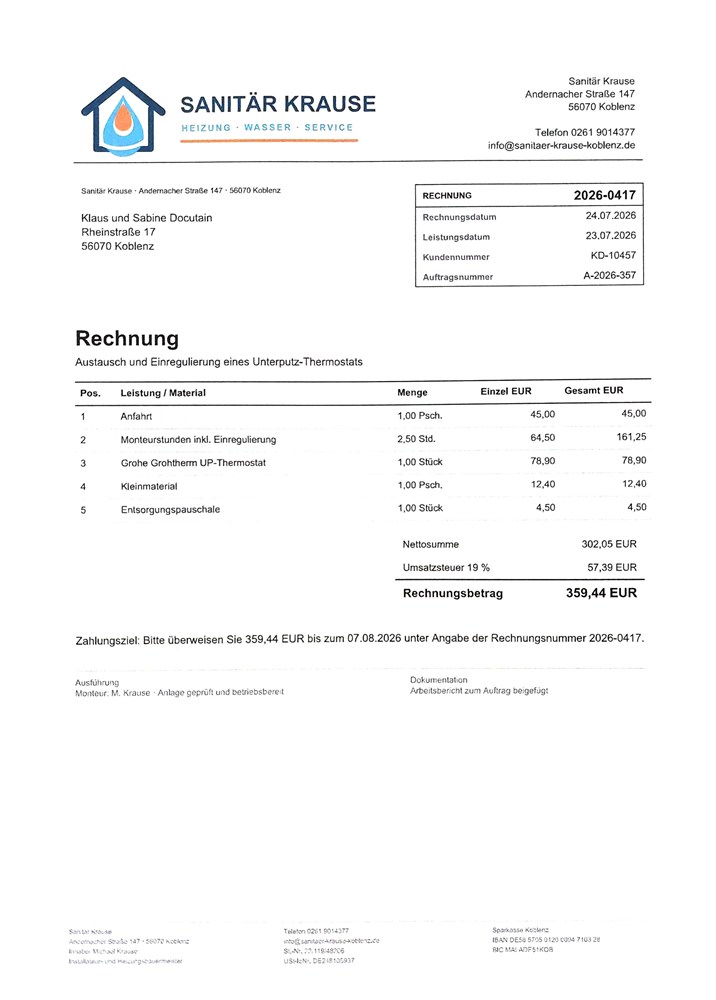
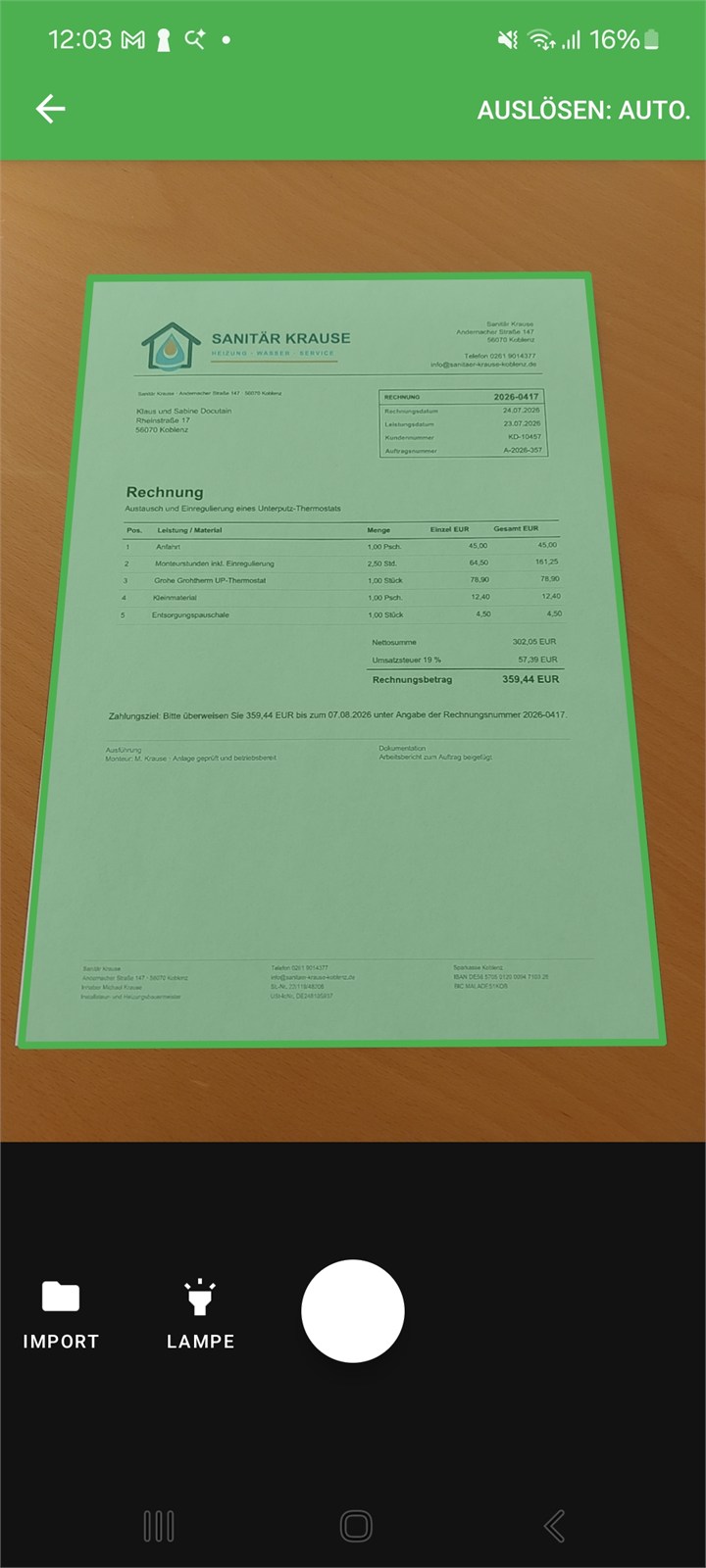
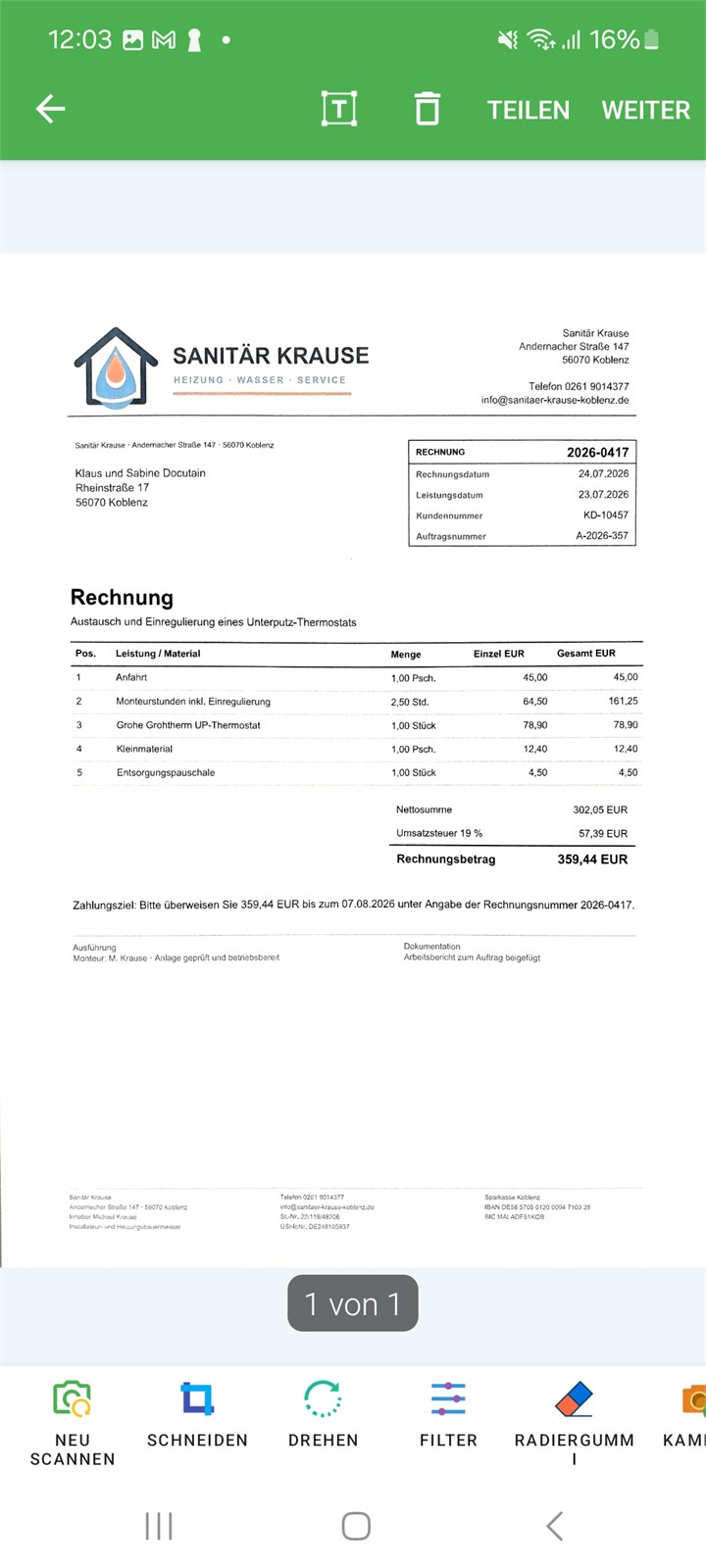
A scanner integration must handle oblique capture angles, creases in the paper and uneven lighting. Docutain detects the document boundaries and prepares the page for export, OCR or data extraction.
Before correctionCreased, captured at an angle and unevenly illuminated
→
After correctionDeskewed, cropped and prepared for downstream processing
Prerequisites for Android 16
| Component |
Recommended setup for this guide |
| Language |
Kotlin |
| Minimum Android version |
Android 6.0 / API level 23 |
| Compile and target SDK |
API level 36 for Android 16 |
| Android Gradle Plugin |
A current API-36-compatible version; Docutain requires at least 8.0.2 |
| Test hardware |
A physical Android device with a rear-facing camera |
Set compileSdk = 36 and targetSdk = 36 when preparing the app for Android 16. Google Play generally requires new apps and app updates to target API level 36 from August 31, 2026; consult the official target API requirements for form-factor exceptions and later changes.
Add Docutain SDK 1.9.0.0
1. Add Maven Central
Make sure mavenCentral() is available in settings.gradle:
dependencyResolutionManagement {
    repositoriesMode.set(RepositoriesMode.FAIL_ON_PROJECT_REPOS)
    repositories {
        google()
        mavenCentral()
    }
}
2. Add the SDK modules
The UI module contains the document scanner. Add the DataExtraction module when the app also needs OCR or structured data extraction.
def docutainSdkVersion = '1.9.0.0'

// Document Scanner UI
implementation("de.docutain:Docutain-SDK-UI:$docutainSdkVersion")

// Optional: OCR and structured data extraction
implementation("de.docutain:Docutain-SDK-DataExtraction:$docutainSdkVersion")
If you use OCR or data extraction, also set android.enableJetifier=true in gradle.properties. Before updating this article's pinned version, check the Android SDK changelog for migration notes.
3. Check the manifest
The merged application manifest must contain camera access for camera-based scanning:
<uses-permission android:name="android.permission.CAMERA" />

<!-- Use required="false" if the app also supports file-only import. -->
<uses-feature
    android:name="android.hardware.camera"
    android:required="false" />
High-resolution document images require memory. Docutain's Android setup therefore recommends enabling a large heap for the host application:
<application
    android:largeHeap="true"
    ... >
</application>
Initialize the SDK
Initialize Docutain before exposing scanner functionality. A production license key is bound to the app's applicationId. For a first evaluation, the SDK can run for 60 seconds without a key; an extended trial license is available for realistic testing.
import de.docutain.sdk.DocutainSDK

class MainActivity : AppCompatActivity() {

    override fun onCreate(savedInstanceState: Bundle?) {
        super.onCreate(savedInstanceState)

        val initialized = DocutainSDK.initSDK(
            this.application,
            "<YOUR-LICENSE-KEY>"
        )

        if (!initialized) {
            val error = DocutainSDK.getLastError()
            // Log the error and disable actions that require the SDK.
        }
    }
}
Do not let the user start a scan after initialization failed. For diagnostics, the SDK log can be retrieved through the Docutain Logger API and shared with support when required.
Start the document scanner
Register the result contract once as a property of the activity or fragment. Launch it with a new DocumentScannerConfiguration when the user taps the scan button.
import de.docutain.sdk.ui.DocumentScannerConfiguration
import de.docutain.sdk.ui.ScanResult

private val documentScanResult = registerForActivityResult(ScanResult()) { success ->
    if (success) {
        // The scanned pages are now available through Docutain's Document APIs.
        // Continue with PDF, image, OCR or data extraction.
    } else {
        // The user canceled the scan process.
    }
}

private fun startDocumentScan() {
    val configuration = DocumentScannerConfiguration()
    documentScanResult.launch(configuration)
}
The default configuration already supports automatic capture, multi-page documents and page editing. Start with the defaults, validate the complete workflow and customize only what the use case requires.
Configure scan and import
The following example enables a final page confirmation and lets the user retake a page:
private fun startConfiguredScan() {
    val configuration = DocumentScannerConfiguration().apply {
        autoCapture = true
        multiPage = true
        confirmPages = true
        pageEditConfig.allowPageRetake = true
    }

    documentScanResult.launch(configuration)
}
Other useful configuration decisions include:
- Automatic or manual capture:
autoCapture controls camera triggering; allowCaptureModeSetting can expose a user-facing switch.
- Single or multi-page: set
multiPage = false when the process accepts exactly one page.
- Review workflow: page-edit settings control cropping, filters, rotation, arrangement, retake, add and delete actions.
- Camera and import: the source can be camera, one or multiple gallery images, image files supplied by the app, or camera plus an import button.
- Branding: colors, icons, button labels and scanner texts can be adapted to the host app.
- Guidance: onboarding and Scan Tips are optional and can use default or custom content.
See the current Document Scan configuration reference before relying on a specific default in a long-lived application.
Create PDF, images, OCR and structured JSON
Create a PDF
After a successful scan, Document.writePDF() creates a searchable or non-searchable PDF depending on the selected option and available OCR module. PDF creation can take time for long documents, so run it outside the UI thread in production code.
import de.docutain.sdk.Document
import de.docutain.sdk.DocutainSDK
import java.io.File

val pdfFile = Document.writePDF(File(filesDir, "scanned-document.pdf"))
if (pdfFile == null) {
    val error = DocutainSDK.getLastError()
}
Page format and maximum file size can also be specified. Compression trades output quality and processing time for a smaller file.
Export page images
Use Document.pageCount() and Document.writeImage() to export JPG files. Page indexes are 1-based. Alternatively, retrieve pages as Bitmap or ByteArray and choose between filtered, cropped-only and original sources.
val pageCount = Document.pageCount()
for (i in 1..pageCount) {
    val file = File(filesDir, "Image$i.jpg")
    val fileReturn = Document.writeImage(i, file)
}
Read OCR text
import de.docutain.sdk.dataextraction.DocumentDataReader

val completeText = DocumentDataReader.getText()
val firstPageText = DocumentDataReader.getText(1)
Extract structured document data
val jsonData = DocumentDataReader.analyze()
The returned JSON can contain fields such as addresses, dates, amounts, invoice identifiers and payment references. Optional analysis flags are available for BIC, payment state and SEPA creditor. Configure these before scanning and validate extracted values against your business rules before automated downstream processing.
Android 16 test checklist
Updating compileSdk and targetSdk is only the first step. Run the scanner and the surrounding host-app flow on Android 16 and include these checks:
- Camera permission: first request, denial, later approval and revocation.
- Edge-to-edge layouts: no controls hidden behind status or navigation bars.
- Predictive Back: canceling or leaving scanner screens behaves as expected.
- Large screens and rotation: activity content remains usable on tablets, foldables and resizable windows.
- 16-KB memory pages: test current arm64 devices or emulators with the latest SDK version.
- Process recreation: repeat the flow after backgrounding or recreating the host activity.
- Real documents: test different paper sizes, lighting, backgrounds, page counts and low-end devices.
- Result handling: verify empty, canceled and failed states before uploading or persisting a document.
Review both the changes affecting all apps and the changes for apps targeting API 36 as part of release testing.
Common integration mistakes
- Using UI and OCR APIs without adding the correct SDK modules.
- Allowing scan actions after
DocutainSDK.initSDK() returned false.
- Performing PDF creation or extensive result processing on the main thread.
- Testing the camera workflow only on an emulator.
- Assuming OCR or extracted fields are always complete without application-level validation.
- Copying a production license key to an app with a different
applicationId.
Official resources
Technical sources last checked on August 29, 2026.
FREQUENTLY ASKED QUESTIONS
Android document scanner integration
Yes. Docutain processes scans, OCR and supported data extraction locally on the device. The host app remains responsible for any later storage or transfer of the result.
Docutain SDK 1.9.0.0 requires Android 6.0, API level 23, or newer. The application must compile with API level 34 or newer; the guide uses API level 36 for Android 16.
Yes. The scanner can start from the camera, gallery selections, image files supplied by the app or a combined camera-and-import mode.
No. The UI module provides the scanner. Add the DataExtraction module when the application also needs OCR text recognition or structured document data.
Start with the Android Showcase App. Then use a free trial license to test camera permissions, edge-to-edge layouts, Predictive Back, large screens, process recreation and the complete result workflow on representative physical devices.