 Kotlin Multiplatform · Kotlin
→
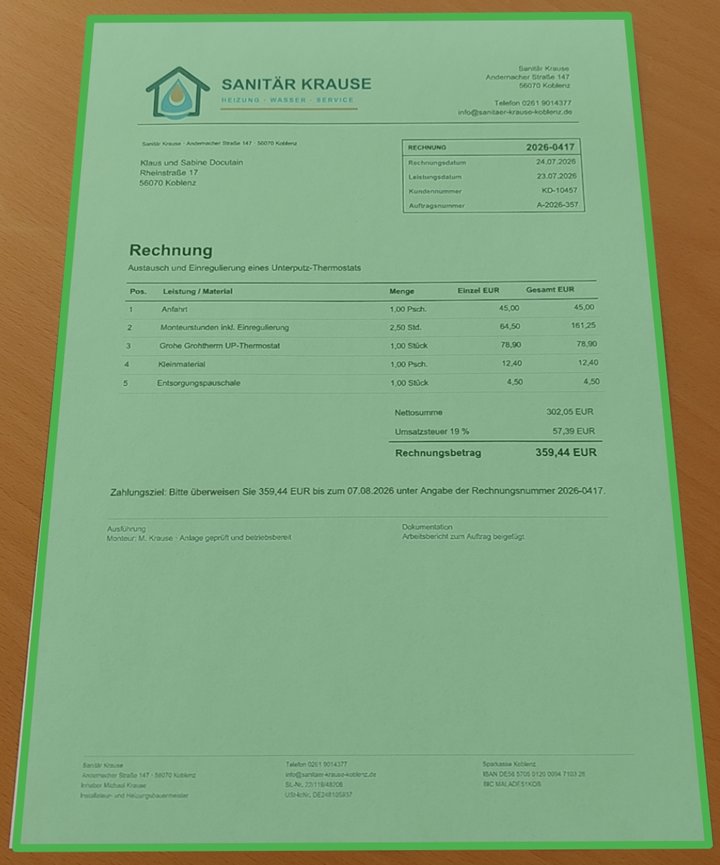
Recognized locally
Payment data
RecipientSanitär Krause
AmountEUR 359.44
IBANDE58 5705 0120 0094 7103 28
PurposeInvoice 2026-0417
IBAN validated by Docutain
Updated 12 min readBy Docutain SDK Team
Integrate Photo Payment with Kotlin Multiplatform
Start the Docutain Photo Payment flow from shared Kotlin code and hand the recognized payment details to your Android or iOS app.
The KMP package exposes one API in commonMain while Docutain uses its native implementations for capture and recognition. Your app can use native screens or Compose Multiplatform around the SDK flow. The SDK reads invoice text or a GiroCode locally and returns payment data; your app reviews and authorizes a payment in its own workflow.
- Targets
- Android and iOS
- Shared API
- Kotlin
commonMain - Minimum OS
- Android API 24; iOS 13
- Result
- Nullable JSON string
Project structure and platform requirements
Plan three layers: commonMain owns SDK calls, result states and shared application logic. The Android and iOS apps provide platform integration, resources and file sharing. The native Docutain UI handles capture and editing; your application then presents the result. A shared API therefore still needs target-specific setup.
The current Android setup requires JDK 17, compileSdk 37 and a compatible Android Gradle Plugin, such as 9.1.1 or newer. iOS builds need a macOS environment with Xcode and CocoaPods. Check compatibility with your existing project in the KMP setup guide. Add a meaningful NSCameraUsageDescription on iOS and verify camera access on both devices before evaluating the complete flow.
Prepare both targets
Add the KMP artifact to the shared module. The iOS application also needs the native Docutain CocoaPod:
kotlin {
    sourceSets {
        commonMain.dependencies {
            implementation("de.docutain:Docutain-SDK-KMP:1.0.0")
        }
    }
}
platform :ios, '13.0'
target 'YourApp' do
  use_frameworks!
  pod 'DocutainSdk', '1.9.0'
end
Run pod install after changing the Podfile and add NSCameraUsageDescription to the iOS app's Info.plist. The KMP setup guide currently specifies SDK 1.0.0 and iOS 13+. The Compose sample pins 1.0.0-beta.1 and sets iOS 15 as its own deployment target. Use matching dependencies when building that sample unchanged.
Initialize the SDK before opening the flow
import de.docutain.sdk.kmp.DocutainException
import de.docutain.sdk.kmp.DocutainSdk

try {
    DocutainSdk.initSdk("<YOUR-LICENSE-KEY>")
} catch (exception: DocutainException) {
    // Keep the payment action disabled and show an appropriate error.
}
Initialize during app startup, before the user can launch Photo Payment. You can request a trial license for your app identifiers. As the sample's setup instructions explain, one KMP license key can cover both Android and iOS.
Start Photo Payment in a coroutine
startPhotoPayment is a suspend function. This example runs in a Compose screen; a KMP app with native UI can invoke the same API from an appropriate coroutine scope in its shared application layer.
import androidx.compose.runtime.rememberCoroutineScope
import de.docutain.sdk.kmp.DocutainException
import de.docutain.sdk.kmp.DocutainSdk
import de.docutain.sdk.kmp.PhotoPaymentConfiguration
import kotlinx.coroutines.launch

val scope = rememberCoroutineScope()
scope.launch {
    try {
        val result = DocutainSdk.startPhotoPayment(PhotoPaymentConfiguration())
        when {
            result == null -> { /* User cancelled; keep the existing draft. */ }
            result.isEmpty() -> { /* Offer manual entry or another attempt. */ }
            else -> { /* Parse JSON into an app model; handle parse errors. */ }
        }
    } catch (exception: DocutainException) {
        // Show an SDK error without submitting a payment.
    }
}
This shortened snippet shows the SDK entry point and result branches; the JSON parser and payment draft are application code. A nonempty result contains JSON payment data. null means the user cancelled. An empty string can occur when no payment data was found and the Empty Result Screen is disabled. Prevent a second tap while the coroutine is waiting for the native flow.
Map the JSON into your payment draft
Read the recipient from SEPACreditor, the amount from Amount, the payment purpose from Reference and the bank details from Address.Bank. Treat fields as optional: invoices differ, and a recognized value may need correction. If BIC extraction is disabled, the bank data shape changes to an IBAN list; adapt your mapper accordingly.
Show the extracted values for review in your own payment screen and apply your app's validation and authorization rules before submission. Docutain recognizes payment information; it does not execute the transfer. GiroCode recognition is enabled by default in the same Photo Payment flow.
PhotoPaymentConfiguration controls the capture experience and optional analysis settings. The sample's PhotoPayment.kt enables payment-state recognition and exposes GiroCode, BIC and page-editing options. Its PaymentData.kt parses the JSON into transfer fields. See the KMP Photo Payment documentation for the current result schema and configuration options.
A concrete Kotlin model for the payment draft
The model below maps the default output with BIC recognition enabled. Add kotlinx-serialization-json to commonMain using a version compatible with your project. This example reads the JSON tree and does not require a generated serializer. The model belongs to your app, not the SDK.
import kotlinx.serialization.json.*

data class BankCandidate(val iban: String?, val bic: String?)
data class PaymentDraft(
    val recipient: String?,
    val amountText: String?,
    val reference: String?,
    val banks: List<BankCandidate>
)

private fun JsonObject.optionalText(key: String): String? {
    val value = this[key] ?: return null
    if (value is JsonNull) return null
    require(value is JsonPrimitive) { "Unexpected field: $key" }
    return value.contentOrNull?.takeIf { it.isNotBlank() }
}

// For the default readBIC = true schema.
fun parsePaymentDraft(raw: String): PaymentDraft {
    val root = Json.parseToJsonElement(raw).jsonObject
    val address = root["Address"]?.takeUnless { it is JsonNull }?.jsonObject
    val banks = address?.get("Bank")
        ?.takeUnless { it is JsonNull }?.jsonArray.orEmpty()
        .map { entry ->
            val bank = entry.jsonObject
            BankCandidate(bank.optionalText("IBAN"), bank.optionalText("BIC"))
        }
    return PaymentDraft(
        recipient = root.optionalText("SEPACreditor"),
        amountText = root.optionalText("Amount"),
        reference = root.optionalText("Reference"),
        banks = banks
    )
}
Call parsePaymentDraft(result) only for a nonempty result. Catch SerializationException and IllegalArgumentException at that boundary, preserving the existing draft on failure. Present the new draft only after parsing succeeds. If several bank accounts are present, support an explicit selection instead of silently taking the first entry.
Keep the amount as text until your payment application converts it with its decimal and currency rules; avoid an uncontrolled floating-point conversion. Missing recipients, amounts or IBANs must remain visibly incomplete. Successful JSON parsing does not replace user review or payment authorization.
This payment flow concerns IBAN, SEPA and GiroCode. It does not establish support for arbitrary domestic payment systems. Evaluate invoice layouts, language, amount formats and currency requirements in your intended markets with your own document set.
val config = PhotoPaymentConfiguration().apply {
    allowGiroCode = true
    analyzeConfig.readBIC = true
    analyzeConfig.readSEPACreditor = true
    analyzeConfig.readPaymentState = true
}
// Inside your coroutine:
val result = DocutainSdk.startPhotoPayment(config)
Keep readSEPACreditor enabled: the payment recipient can differ from the invoice sender. readPaymentState adds a status inferred from the document; it does not reconcile the invoice with a bank account. See the Photo Payment documentation.
Keep the default Empty Result Screen during evaluation. It offers retry or cancellation when no payment data was found. Setting emptyResultScreen = null makes your app responsible for that flow and for handling an empty result. Do not display user cancellation as a recognition error.
To receive shared PDFs and images, register your app as a target on each platform. Android supplies readable content:// URIs. On iOS, copy an externally opened file into app-owned storage while access remains valid and pass exactly one file:// URL. Call startPhotoPaymentWithExternalFiles after initialization and consume each pending import once. The documentation and linked Compose sample show the platform handlers.
Test on both native targets
- Run the flow on physical Android and iOS devices with representative invoices and GiroCodes.
- Check
null, empty results, SDK errors and malformed JSON before filling a draft. - Verify the recipient, IBAN, amount and reference against the source document and allow corrections.
- Check app backgrounding and repeated taps while the SDK UI is open.
- For documents shared into the app, evaluate
startPhotoPaymentWithExternalFiles using the official documentation.
The official KMP Compose example provides a working reference for the full Android and iOS integration.
Troubleshoot common integration problems
If the native UI opens more than once, check the trigger: launch from a user action and disable that action until completion. Starting directly in a composable function body can launch it again on recomposition. Keep ready, running, cancelled, successful and failed states distinct, and clear the running flag on failures too.
For initialization failures, check the license and application identifiers; for iOS linker errors, first check the installed Pod and matching dependencies. Distinguish user cancellation from coroutine cancellation, which should propagate to the parent scope. Read the KMP guides for Coroutines and suspend functions and Error Handling.
Try it in your appEvaluate Photo Payment with KMP
Test local recognition and the handoff to your payment draft on both target platforms.